 Cart Rocket
Sell Subscriptions as Christmas Gifts with One Cart Link
A subscription can make a good Christmas present: a box of coffee, flowers or socks that keeps arriving after the wrapping paper is gone. A cart link lets a gift buyer get the plan into their cart in one tap. This post covers how to set one up, what to say about addresses and billing, and how to time it around your own shipping cutoff.
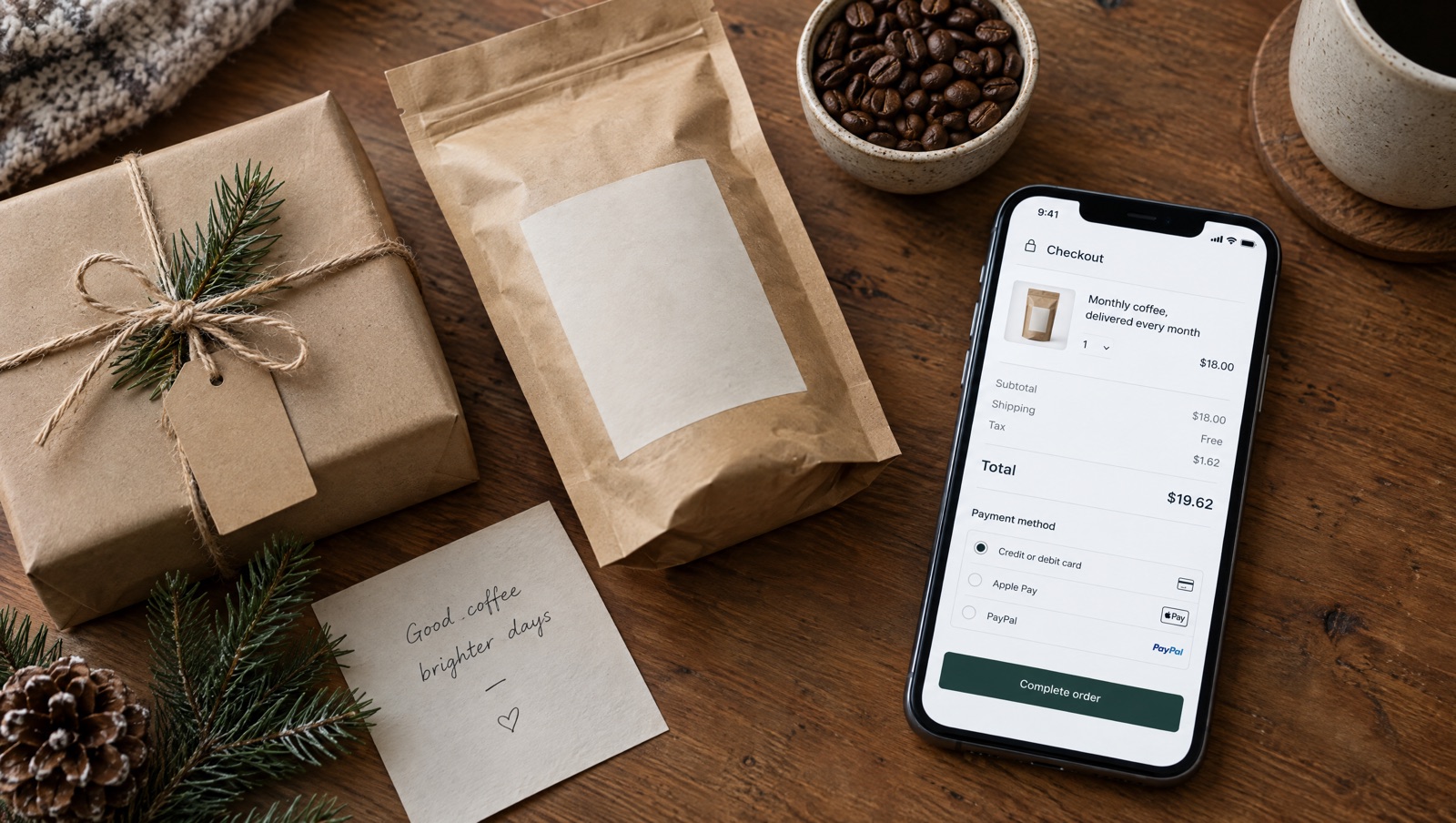
Who buys a subscription as a gift
Christmas Day 2026 is a Friday (GOV.UK bank holidays, checked October 14, 2026). In the weeks before it, the people opening your gift emails aren't always the people who will drink the coffee. They're buying for a parent, a friend or a colleague, and they want a present that looks considered without a lot of research.
A subscription answers that, as long as the buyer understands what they're signing up for. Who gets billed and where each box goes are the two questions to answer clearly on the page.
Put the plan in the cart link
Cart Rocket can add a product to the cart on one of its subscription plans. The product needs subscription plans in your store already, set up in Shopify Subscriptions or another subscription app.
- Create a cart and give it a Title you'll recognise in Analytics, such as
gift-sub-christmas. - In Products, add the subscription product.
- Under that product, open the Purchase option menu and choose the plan you want gift buyers to get. Leave other products on One-time purchase.
- Save, then use Open under Cart link to check the cart yourself before you share it.
Shoppers who open the link get that product on the plan you chose. Docs: Subscriptions.
The Purchase option is set per product, so you pick one plan for each link. If you want to offer a monthly plan and a quarterly plan, make two cart links and put both in the gift guide. On Basic only one cart link works at a time, so running two gift links side by side needs Pro.
Prepaid plans fit gifting well
If your subscription app offers prepaid plans, a fixed run paid up front, such as three months, is usually easier to give than an open-ended plan. Shopify shows a prepaid subscription as a single order with a Scheduled status until each fulfilment date comes round (Shopify Help Center, checked October 14, 2026). Whether you can offer one depends on your subscription app, so check there first.
Be clear about addresses and billing
Cart Rocket puts the product and plan in the cart and sends the shopper to Shopify checkout. Everything after that is Shopify's checkout and your subscription app. Cart Rocket has no gift-recipient field, gift message or separate gift address. The shipping address is whatever the buyer enters at checkout, so a buyer who wants the boxes sent to someone else types that person's address there.
A few things from Shopify's subscription considerations (checked October 14, 2026) are worth knowing before you write the gift copy:
- The buyer needs a payment method that supports recurring billing. Local, manual or other non-card payment methods might not be available for subscriptions.
- At checkout the buyer confirms that they understand they're buying a subscription.
- The default checkout disclosure tells buyers they can cancel from their account or by contacting the store, so the buyer is the one who manages it.
- A gift card used to pay for a subscription only covers the first payment.
How later deliveries are addressed, and how an address can be changed, depend on your subscription app. Check it there before you promise anything in an email. Then say it plainly on the page: who gets charged, how often, and where the boxes go.
Give it a page with a deadline
The options page before checkout is a page in your theme that shows the cart before checkout. Use it to explain the gift in your own words. Tick Show the options page before checkout, then fill in Heading, Description and Button label. A description like "Three months of coffee, billed to you, delivered to them. Enter their address at checkout." answers the main question before the buyer gets to checkout.
A countdown can sit on the same page. Tick Show a countdown until this offer ends and choose When this cart link ends under Count down to, so the timer and the link end together. The Cart Rocket docs don't describe how the options page shows a subscription plan, so open the link with Open and check the page before you send it.
Set your own cutoff
Only you know when the first box can still arrive before Christmas. That depends on your stock, your packing time, the carrier and where your buyers live. Pick that date, add a buffer, and make it the link's end date.
- Open Advanced, then Active dates. Set a start date for your gift campaign and an end date at your cutoff. All times are in UTC, and if your store isn't on UTC the editor shows the same moment in your store's time zone. See Active dates.
- In the countdown Label, say what the deadline means, such as Order for Christmas delivery in. It takes up to 40 characters.
- Put the same cutoff in the email and the ad, so the timer and the copy agree.
After the end date, the link stops working and shoppers are sent to the product or home page with a short notice. If you also sell subscriptions to people buying for themselves, keep that on a separate link with no Christmas end date. Add a real countdown to your cart link offers covers the timer in detail.
Add a one-time gift box for undecided buyers
Some buyers will like the idea but not want to set up anything recurring for someone else. Give them a second link with a one-time gift set. In Products, select the items, choose Create bundle, name it and set its price. The shopper then sees one bundle line in the cart. If something in it comes in sizes, tick Let shoppers choose size/colour on that product so the buyer can pick on the options page. Holiday gift bundles in one link walks through bundles for gift buyers.
Put both links next to each other in the email: "Give a subscription" and "Give a one-off box".
Fill in checkout details carefully
In Checkout details, Fill in from your email or SMS tool lets your email tool put each recipient's own details into the link, so checkout starts with them filled in. For a gift link, think about which details to turn on. The buyer's Email and Name help. Their Shipping address may not, because a gift buyer is often sending the boxes to someone else. Only use these links in messages sent to one person, since anyone who opens the link sees those details at checkout.
Track gift orders separately
- Tracking: add UTMs such as
utm_campaign=gift-sub-christmasso the gift link shows on its own in Analytics under Campaigns. - Tag orders: add a tag such as
gift-sub-2026. Cart Rocket adds it to orders placed through the link, so you can filter gift subscriptions in your Shopify admin. - Order note: a short note in the order details, such as "Christmas gift subscription", lets whoever packs the first box know to leave the invoice out, if that's how you handle gifts.
- Creators: if creators are featuring the gift, add each one in Creators so they get their own
?ref=code on the same link. Creator drops for the holidays covers that setup.
Docs: Tracking & attribution and Tag orders.
A short checklist
- Subscription plans exist in your store, and you've checked how your subscription app handles addresses and prepaid plans.
- The cart link has the product on the right Purchase option.
- The options page explains who is billed and where boxes go.
- The end date in Active dates matches your own shipping cutoff, and the countdown uses it.
- A one-time gift bundle link is ready for buyers who don't want a subscription.
- UTMs and an order tag are set, and you've opened the link yourself with Open.
Try it on your store
Cart Rocket builds pre-loaded cart links for Shopify with automatic discounts, bundles, an options page with a countdown, order tags, UTM tracking and QR codes. Basic is $9/month for one cart link with every feature; Pro is $15/month for unlimited links.
Install Cart Rocket →