 Cart Rocket
One Email Button That Adds Several Products to the Cart (Klaviyo and Other Tools)
Email buttons usually point at one product page. If you want a single button that puts a whole kit in the cart, or rebuilds the customer's last order, you need a link that does the cart work for you. This post covers what Shopify gives you for free, where it gets fiddly, and how to set it up with Cart Rocket in Klaviyo or any other email tool.
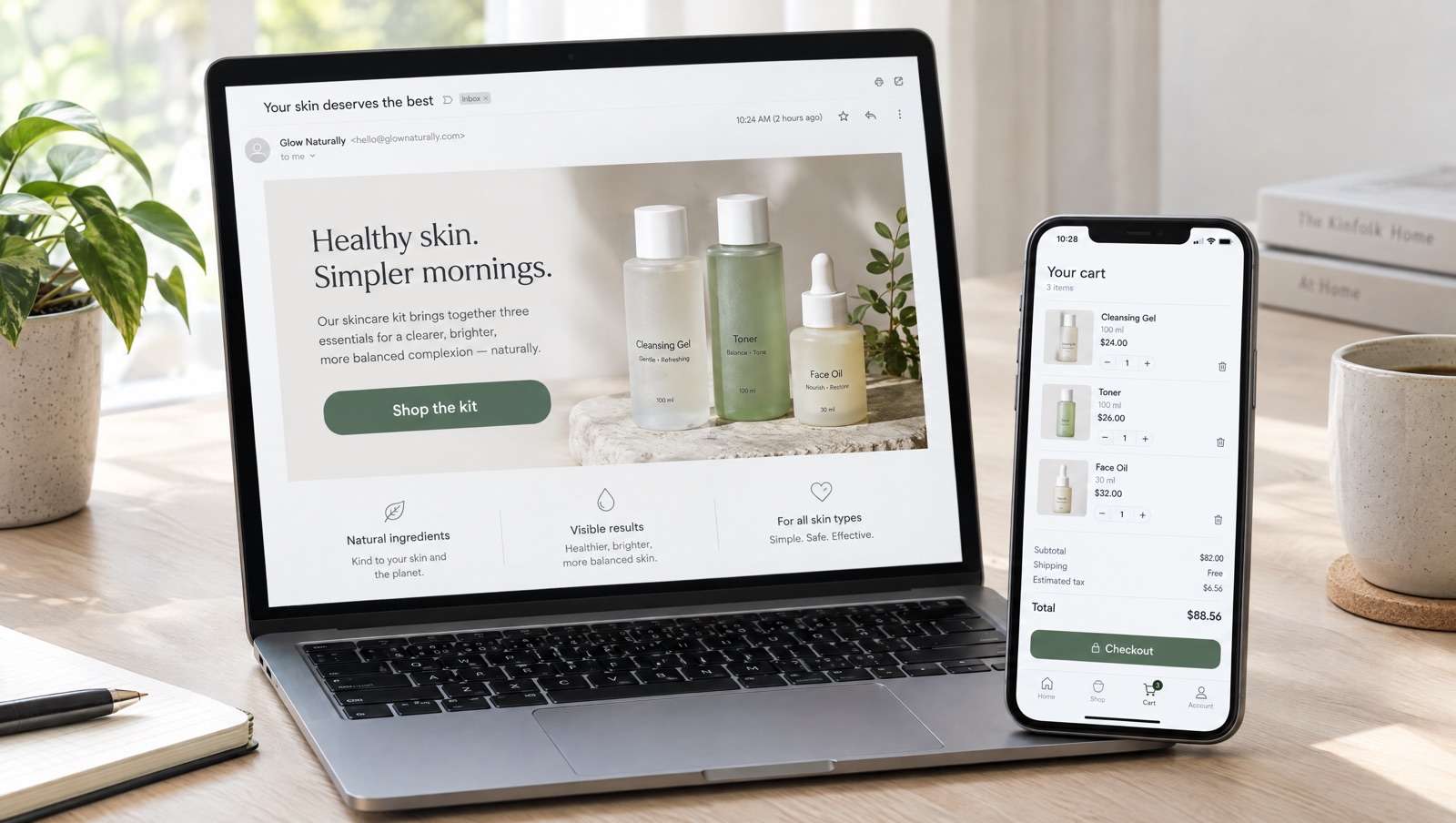
The question
"Button in Klaviyo to add multiple items to cart in Shopify" is the title of a thread in the Klaviyo Community (you need a Klaviyo login to read it). The request usually means one of two things, and each needs a different answer:
- A fixed set of products: a starter kit, a routine or a gift set that's the same for everyone on the list.
- The customer's own last order: a "buy again" button where every recipient gets back whatever they bought last time.
A fixed set of products
The free way: a Shopify cart permalink
Shopify's cart permalinks already handle several products. The URL lists each variant ID and quantity after /cart/, separated by commas, for example /cart/70881412:1,70881382:1, and opens checkout with those items. Add ?discount= with an existing code to apply it. You can paste that URL into a button in Klaviyo or any other email tool.
For a simple kit with a discount code you already have, that's enough, and it costs nothing. It gets fiddly when you need to find variant IDs for every size and colour, or want a bundle price instead of a code. Subscription products can't go in a permalink at all; Shopify's docs say selling plans don't work with them.
With a Cart Rocket cart link
- In Cart Rocket, click Create cart and choose Start from scratch, or pick the Bundle deal starter template, which fills in UTMs, the order tag
bundle-dealand a 15% cart discount you can change. - In General, give it a Title you'll recognise in Analytics, such as
spring-routine-email. - In Products, click Add product, select each product and variant, and set quantities. Leave What this link adds to the cart on Specific products.
- Optional: add a discount in Discounts, or select the items and choose Create bundle to sell them as one cart line at one price. No discount code is needed for either.
- Under Advanced, Checkout options decides where shoppers land: checkout (the default), the cart page with Redirect to cart instead of checkout, or Use Shop Pay checkout. The same section has Empty the shopper's cart before adding these items, which keeps older items out of the offer.
- Save, then click Copy link under Cart link.
- In your email tool, paste the link into the button's link field.
Each click loads the full set into the cart. Add UTM parameters in Tracking (for example utm_source=klaviyo&utm_campaign=spring-routine) and Analytics shows orders and revenue for the link and the campaign.
Docs: Managing products, Bundles and Checkout options.
The customer's last order
This is the harder one. Every recipient bought something different, so a single fixed link can't work. The do-it-yourself route is to build a permalink inside the email template from each person's order data, which means writing template logic in your email tool and testing it in every flow that uses it.
A Cart Rocket reorder link does it with one URL for everyone. When a shopper opens it, Cart Rocket adds their most recent order back to their cart.
- Click Create cart and pick the Reorder starter template. It sets the link to Customer's last order and fills in UTMs and the order tag
reorder. - If you started from scratch instead, go to Products and set What this link adds to the cart to Customer's last order.
- Add anything else you want on the link. Discounts, order tags and tracking still apply, so you can add a small thank-you discount on top.
- Save, copy the link and paste it into the button of your "buy again" email.
There are a few things to know before you send it:
- The shopper has to be logged in. Anyone who isn't is asked to log in first, and then their last order goes into the cart.
- They need at least one past order. Send it to customers, not to your whole list.
- Items that are no longer available are skipped, and the rest of the order is still added.
Docs: Reorder links. For timing, the New Year sale playbook uses reorder links in buy-again emails with Shopify Flow reminders.
Which one to use
- Same products for everyone, an existing discount code, no tracking needed: a Shopify permalink is fine.
- Same products for everyone with bundle pricing, a discount without a code, a size or colour choice on the options page before checkout, or per-link analytics: a Cart Rocket cart link on Specific products.
- Each customer's own last order: a Cart Rocket reorder link on Customer's last order.
If you'd also like checkout to open with the customer's email and name filled in, our guide to pre-filling Shopify checkout from email and SMS covers the merge tags.
Try it on your store
Cart Rocket builds pre-loaded cart links for Shopify with automatic discounts, bundles, reorder links, an options page with a countdown, order tags, UTM tracking and QR codes. Basic is $9/month for one cart link with every feature; Pro is $15/month for unlimited links. Both start with a 7-day free trial.
Install Cart Rocket →