 Cart Rocket
Start a Cart Link in a Minute: The Five Starter Templates
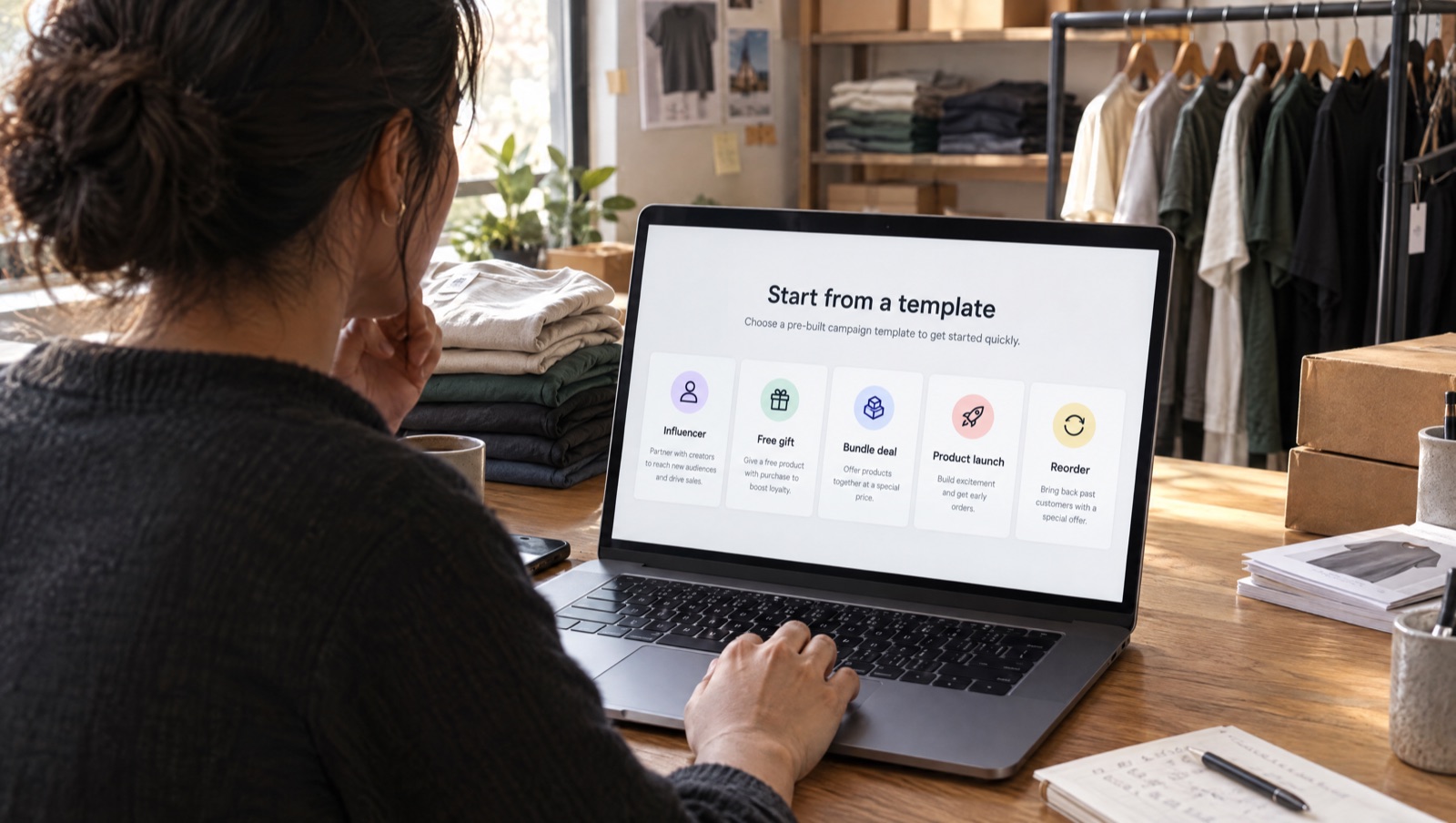
Most cart links do one of five jobs: a creator's picks, a free gift, a bundle, a launch or a reorder. Cart Rocket has a starter template for each. Pick one and the editor opens with tracking, an order tag and a discount already filled in, so what's left is choosing products and checking the details.
How the templates work
In Cart Rocket, click Create cart. The app asks How do you want to start? and shows the five templates plus Start from scratch.
Choosing a template fills in suggested settings and opens the product picker so you can add products straight away. A short tip at the top of the editor says what to do next. Nothing is saved until you click Save, so you can try a template, look around and back out without leaving a half-built link behind.
You can change every setting a template fills in, so treat the values below as a starting point. The ones most worth editing are the UTM campaign name and the order tag (set by Tag orders), because those are what you'll filter by later in Analytics and in your Orders list.
Influencer
Use this one when you're sending several creators the same set of products and want to know which of them drove sales. It fills in:
- Suggested title: Creator picks
- UTMs: source
creator, mediumsocial, campaigncreator-picks - Tag orders on, with the tag
creator - A 10% discount on the whole cart
- An empty Creators list, ready for you to fill
Add the products, then go to Creators and click Add creator for each person. A creator has a Name, which only you see, and a Code made of lowercase letters, numbers and hyphens. Their link is your cart link with the code on the end:
https://your-store.com/apps/cart/summer-kit?ref=miaOrders from that link are tagged creator-mia unless you type a different tag in Order tag (optional). Copy each creator's link or QR code from the Their link column after you save. Rename the campaign from creator-picks to the actual drop (summer-kit, say), and set the discount to whatever you agreed with the creators. Results per creator show up in Analytics under Creators: opens, orders and revenue.
Free gift
Use this for a gift with purchase, a sample with a first order, or a free product you send to someone directly. It fills in:
- Suggested title: Free gift with your order
- UTMs: source
email, mediumemail, campaignfree-gift - Tag orders on, with the tag
free-gift
It doesn't set a discount, because you choose the gift product yourself.
Add the products you're selling and the gift. Then give the gift product a 100% item discount so it costs nothing in the cart. The shopper doesn't type a code; the discount is there when the cart opens. If you want the gift to go to each customer only once, set a per-customer limit under Advanced in Purchase limits (the shopper needs to be logged in for that to work). If the link will go out on SMS or social, change the UTM source to match.
The same setup works for creator gifting. Put only the gift products in the cart, discount all of them by 100%, and send the creator the link so they can enter a shipping address at checkout.
Bundle deal
Use this for products that sell better together, like a starter kit or a holiday set. It fills in:
- Suggested title: Bundle deal
- UTMs: source
store, mediumlink, campaignbundle-deal - Tag orders on, with the tag
bundle-deal - A 15% discount on the whole cart
Add the products, then decide how the bundle should look in the cart. If they should be sold as one item, select them in the Products list and choose Create bundle; you can then give the bundle a set price. If they should stay as separate lines, keep the 15% cart discount or change it. Match the UTM source to where the link will be posted, since store won't tell you much in Analytics.
Bundles where shoppers need to pick a size or colour work better with the options page before checkout turned on, which is the next template's main setting.
Product launch
Use this for a new product that comes in sizes or colours, where sending everyone straight to checkout with one fixed variant would be a guess. It fills in:
- Suggested title: New launch
- UTMs: source
launch, mediumemail, campaignproduct-launch - Tag orders on, with the tag
launch - Options page before checkout turned on, with the heading Just launched, the description Pick your options and head straight to checkout. and the button label Continue to checkout
Add the new product, then tick Let shoppers choose size/colour on it in the Products list. The options page is a page in your store's own theme that lists the products and prices. Shoppers choose their option there, then go on to checkout. Any discount on the link follows whichever variant they pick. Rewrite the heading and description in your own voice, or leave them blank to use the defaults. Add start and end dates in Advanced, under Active dates, if the launch has a fixed window; all times are in UTC. If the launch price ends at a set time, tick Show a countdown until this offer ends on the options page so shoppers can see how long it has left. Every shopper sees the same deadline, and at zero the page says This offer has ended. Our post on adding a real countdown covers the settings.
Reorder
Use this in "buy again" emails and restock reminders, where each customer should get back what they bought last time. It fills in:
- Suggested title: Order again
- What this link adds to the cart set to Customer's last order
- UTMs: source
email, mediumemail, campaignreorder - Tag orders on, with the tag
reorder
There are no products to add. The link rebuilds the most recent order of whichever logged-in customer opens it, so one link works for your whole list. Shoppers who aren't logged in are asked to log in first. Items that are no longer available are skipped, and the rest of the order is still added. You can add a discount, such as 5% for coming back, and the order tag and tracking still apply. Reorder links don't have an options page, because the products come from the customer's own order.
This is the link to paste into the Reorder reminder recipe on the Automations page. Our post on automating follow-ups with Shopify Flow walks through that workflow.
When to start from scratch
If a link doesn't match any of the five, such as a wholesale order, a QR code for a market stall or a private offer for one customer segment, choose Start from scratch and you get an empty cart with no suggested settings. You can also duplicate a cart you've already set up and change the products.
Whichever way you start, open the link on your phone before you share it. The Starter templates section of the docs has the same list for quick reference, and you can ask Sidekick to create a cart link if you'd rather describe it than click through the editor.
Try it on your store
Cart Rocket builds pre-loaded cart links for Shopify with automatic discounts, bundles, order tags, UTM tracking and QR codes. Basic is $9/month for one cart link with every feature; Pro is $15/month for unlimited links.
Install Cart Rocket →